
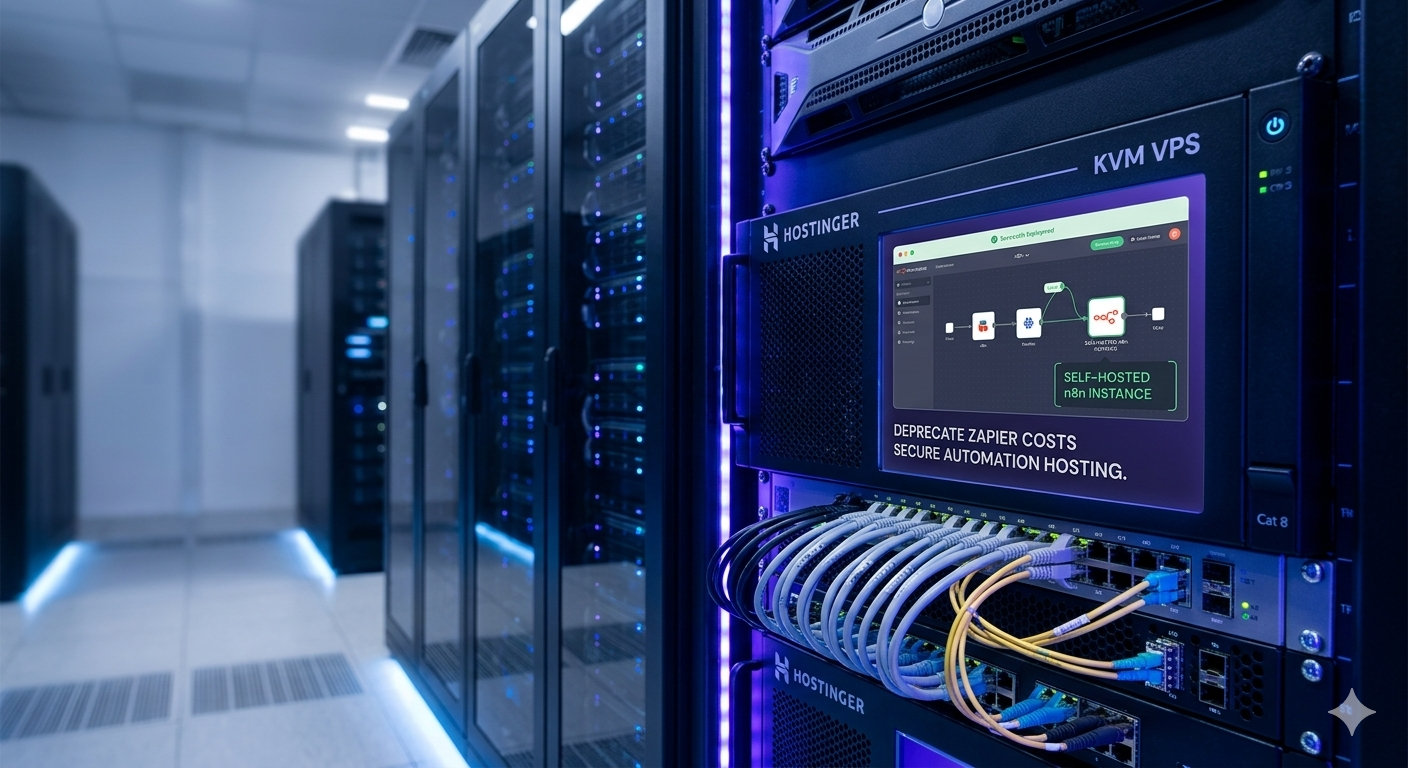
As modern engineering teams build complex automated operations, cloud-hosted automation services like Zapier or Make quickly turn into massive monthly expenses. Paywalls restrict custom webhooks, execution quotas drain your budget, and sensitive company data gets processed across third-party networks.
Enter n8n—the ultimate fair-code, node-based workflow automation alternative. By self-hosting n8n, you break free from subscription caps, unlock unlimited visual execution structures, and retain complete data ownership.
To maximize uptime and runtime performance, deploying your automation stack on an isolated, reliable virtual private server is crucial. In this guide, we walk through deploying a fully self-hosted n8n instance on a high-performance Hostinger VPS utilizing Docker and Docker Compose.
Why Choose Hostinger VPS for Your n8n Automation Stack?
Running background tasks, continuous Webhook listening, and handling automation nodes requires stable backend compute power. Unlike standard shared environments, a Hostinger KVM VPS provides dedicated RAM, NVMe storage arrays, and complete root SSH access.
This isolated infrastructure architecture ensures your automation scripts execute instantly without processing delay overhead, even when handling heavy API loops, formatting complex arrays, or pushing deep data syncing routines.
Prerequisites: What You Need Before Starting
Before initiating deployment commands, ensure you have the following assets ready:
- A Hostinger KVM VPS account running Ubuntu 24.04 LTS or 22.04 LTS.
- A domain name pointed to your server infrastructure (e.g., via Cloudflare).
- Terminal access (via SSH) with root or sudo privileges.
Step 1: Point Your Subdomain to Hostinger (DNS Setup)
To route external webhooks and browser access to your container, you must configure a clean subdomain.
- Log into your DNS dashboard (e.g., Cloudflare).
- Add a new A Record.
- Name: n8n (This creates n8n.yourdomain.tech).
- IPv4 Address: Paste your designated Hostinger VPS IP address.
- Proxy Status: Toggle to DNS Only for initial setup to ensure seamless SSL handshake generation.
Step 2: Connect to Your VPS and Update the System
Open your local terminal and establish an authenticated SSH connection to your Hostinger server infrastructure:
# Connect to your VPS via SSH
ssh root@your_hostinger_vps_ip

# Update repositories and upgrade system core files
sudo apt update && sudo apt upgrade -y
Step 3: Install Docker and Docker Compose
n8n is built to run safely inside a predictable, lightweight containerized framework. Run the following command block to install Docker Engine along with the Docker Compose plugin:
# Install critical system packages
sudo apt install apt-transport-https ca-certificates curl software-properties-common -y

# Download and add Docker's official secure GPG validation key
curl -fsSL https://download.docker.com/linux/ubuntu/gpg | sudo gpg --dearmor -o /usr/share/keyrings/docker-archive-keyring.gpg

# Append the stable Docker repository database listing
echo "deb [arch=$(dpkg --print-architecture) signed-by=/usr/share/keyrings/docker-archive-keyring.gpg] https://download.docker.com/linux/ubuntu $(lsb_release -cs) stable" | sudo tee /etc/apt/sources.list.d/docker.list > /dev/null

# Install Docker core engine and modern compose utilities
sudo apt update && sudo apt install docker-ce docker-ce-cli containerd.io -y

# Verify running system versioning to confirm installation success
docker --version
Step 4: Configure the Docker Compose Environment for n8n
To maintain a clean configuration layout, create a specific directory for your automated stack components:
mkdir ~/n8n-stack && cd ~/n8n-stack
nano docker-compose.yml
Paste this production-ready deployment composition format into your text editor. Make sure to update the environment variables with your real domain details:
version: '3.8'

networks:
  n8n_network:
    driver: bridge

services:
  n8n:
    image: docker.n8n.io/n8nio/n8n:latest
    container_name: n8n_automation
    restart: always
    ports:
      - "5678:5678"
    environment:
      - GENERIC_TIMEZONE=UTC
      - TZ=UTC
      - N8N_HOST=n8n.yourdomain.tech
      - N8N_PORT=5678
      - N8N_PROTOCOL=https
      - WEBHOOK_URL=https://n8n.yourdomain.tech/
    volumes:
      - n8n_storage:/home/node/.n8n

volumes:
  n8n_storage:
    external: false
(Press CTRL + O then Enter to save, and CTRL + X to exit the terminal file editor.)
Step 5: Launch Your n8n Instance
With your environment variable configuration set up correctly, instruct Docker to fetch the latest platform images and launch your isolated runtime application in the background:
docker compose up -dTo watch the initialization sequences and ensure the internal server engine starts up cleanly without throwing authentication or volume path errors, track the live log feed:
docker compose logs -f n8nStep 6: Initial Admin Setup and Security Hardening
Now that the server is listening inside your execution environment, map your port (5678) using a simple reverse proxy like Nginx Proxy Manager, or proxy via Cloudflare SSL directly to your host’s open container network.
- Launch your web browser and navigate to your configured address: https://n8n.yourdomain.tech.
- You will be greeted by the official n8n initialization screen.
- Input your primary administrator Name, Email Address, and generate a strong, secure password string.
- Go to your configuration panel and ensure open registration remains strictly turned off. This prevents unauthorized external parties from trying to access your processing engine or view secure workspace endpoints.
Conclusion & Next Steps
Congratulations! You have effectively moved past artificial processing limitations by deploying a completely scalable, private, self-hosted n8n instance on your secure Hostinger VPS.
Now you can start constructing custom automated tasks—like pairing your new workflows with internal vector databases, monitoring system metrics, or routing data to private AI frameworks like CrewAI and Docker containers to manage smart agents right from your independent infrastructure ecosystem!